
Using the Cue timer
The Cue gives you an easy to use and reliable stage timer and message display you can run from any device. It runs from any device that has an internet connection. Most productions use a basic Android tablet with a permanent power connection.
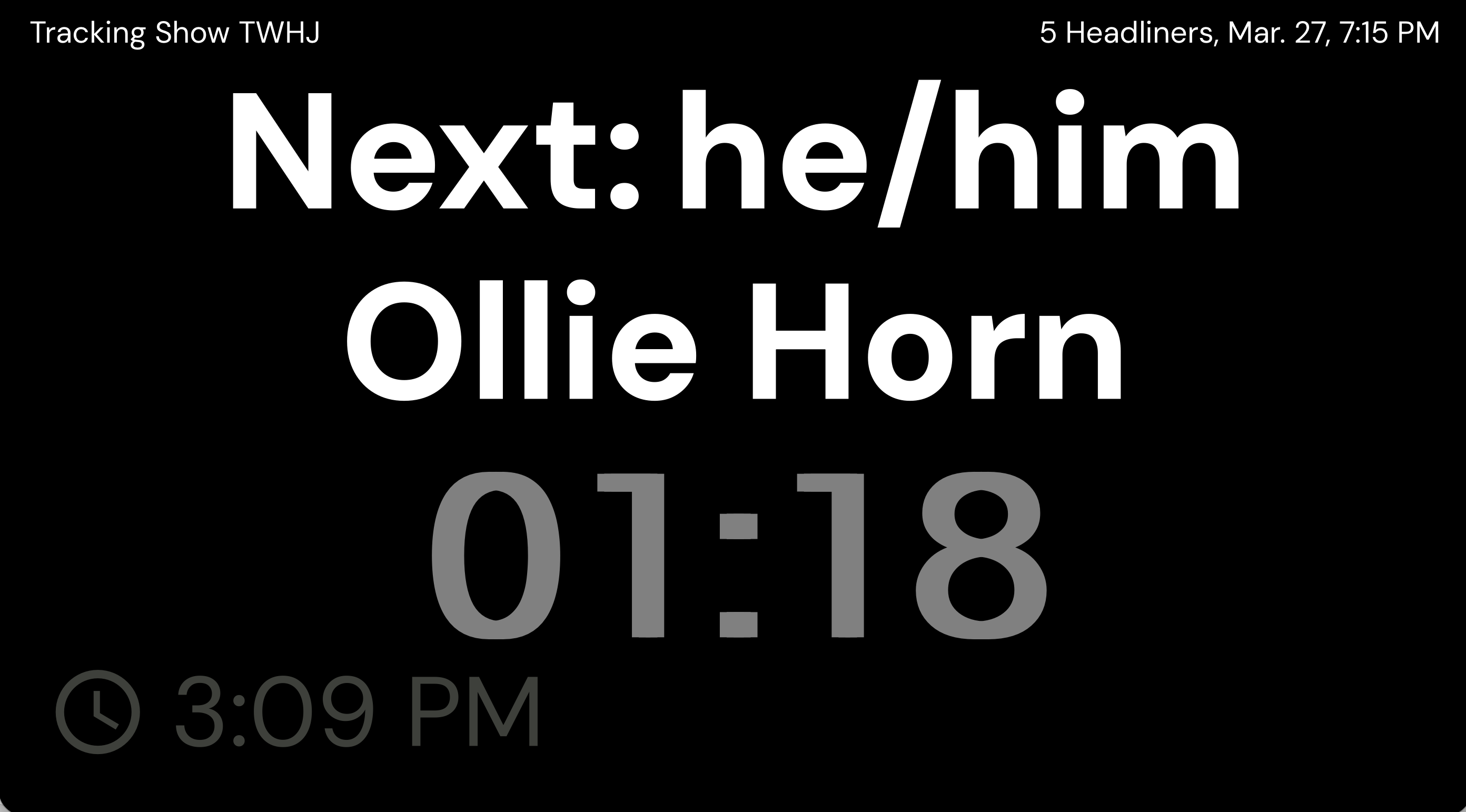
Use it during a show to keep acts on time, send messages to the stage, and inform the MC of the name of the acts they are bringing on.
Cue is included with Confirmed subscriptions. If you also have Showtime, you can customise more of the show-running experience and use related tools like DMX Lighting with Showtime to, for example, trigger a red light to illuminate when an act is running their time.
What Cue is used for
Showing a countdown timer to the act on stage
Displaying the current time in a larger clock view
Sending short messages during the show
Telling an MC the name of the next act
Accessing the Cue
There are two ways to access the Cue, either by navigating to the Cue for a specific show, or by leaving your device on a permanent web page, and using the active show feature to tell the Cue which show it should display the timer for.
Access for a specific show
You can access specific show's cue by, first, entering the Showrunning mode by clicking 'Run' from the show menu (three dots to the right of the show), and then and navigating to the menu on the top left and selecting Cue.
Access the production Cue
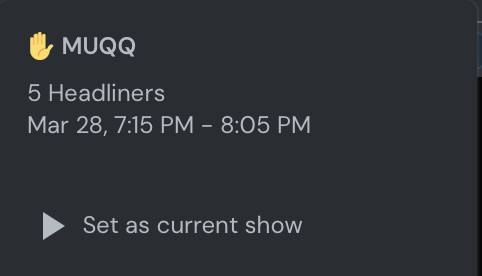
You can access your productions Cue by visiting https://confirmed.show/<to>/cue/ on any device with an internet connection. Replace '<to>' with your production handle. This will display whichever show has been set as your current show. You can make a show current by clicking on the button on the top right of show running mode, and selecting 'Set as current show'.
Install a permanent Cue in a venue
If you run shows in the same room regularly, you can set up a device in the venue and leave it on the permanent Cue screen.
Go to the venues listing and select a venue
If you have multiple rooms, click on the rooms tab
Click on the cue icon , or right-click to copy the link

Before doors open, it's worth checking if the cue is working and connected to the internet, by activating an act slide in the show and seeing that the countdown timer starts.
For help creating the show first, see Creating shows and adding dates.
Send messages to acts during the show
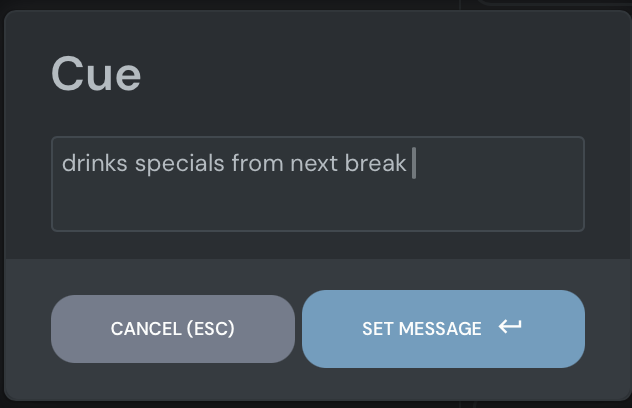
Use Cue messages for short prompts that an act can read at a glance.
Open the Cue controls (right hand side of Showrunning view).
Click on the timer.
Enter the message you want to show and click SET MESSAGE.
Update or clear it when you no longer need it.
Keep messages short. Cue works best for simple prompts like timing warnings, wrap-up reminders, or who is next.
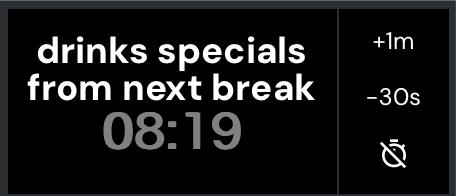
Adjusting remaining time displayed in Cue
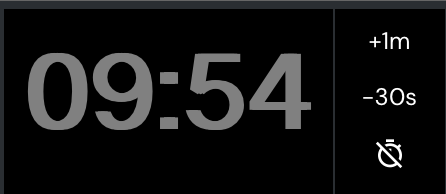
The Cue will display the length of the spot according to your show configuration. Any changes you make to acts allocated times will automatically update the cue, provided it has a network connection. During performance you might want to extend or shorten a specific spot while the act is on stage. To do that, open the show running screen and then use the +1m and -30s to tweak timing as necessary. This will not affect the recorded spot length.
Change the length before the show
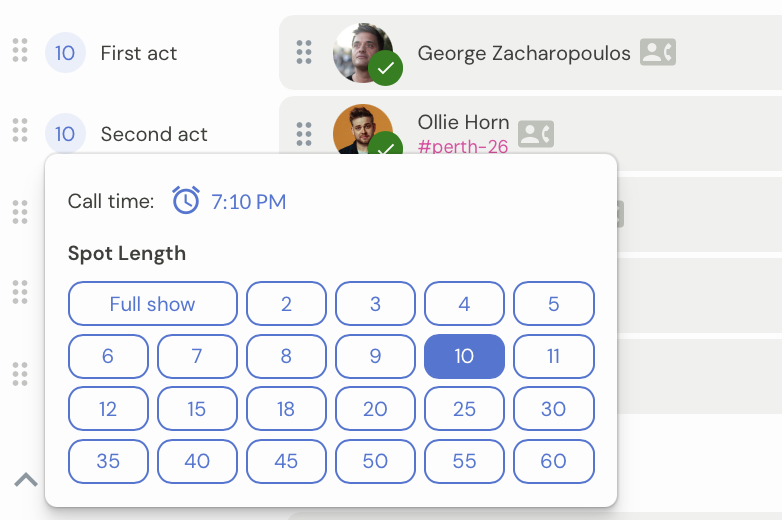
If you booked an act for 10 minutes, and decided because the show is overrunning that they should do an 8 minute spot instead, you can modify their timings either by editing the spot in the show listing, or in the Lineup tab of the show running screen.
In the show listing
In the dashboard view, you can click on the number to the left of the spot type, and choose how many minutes that act will do.
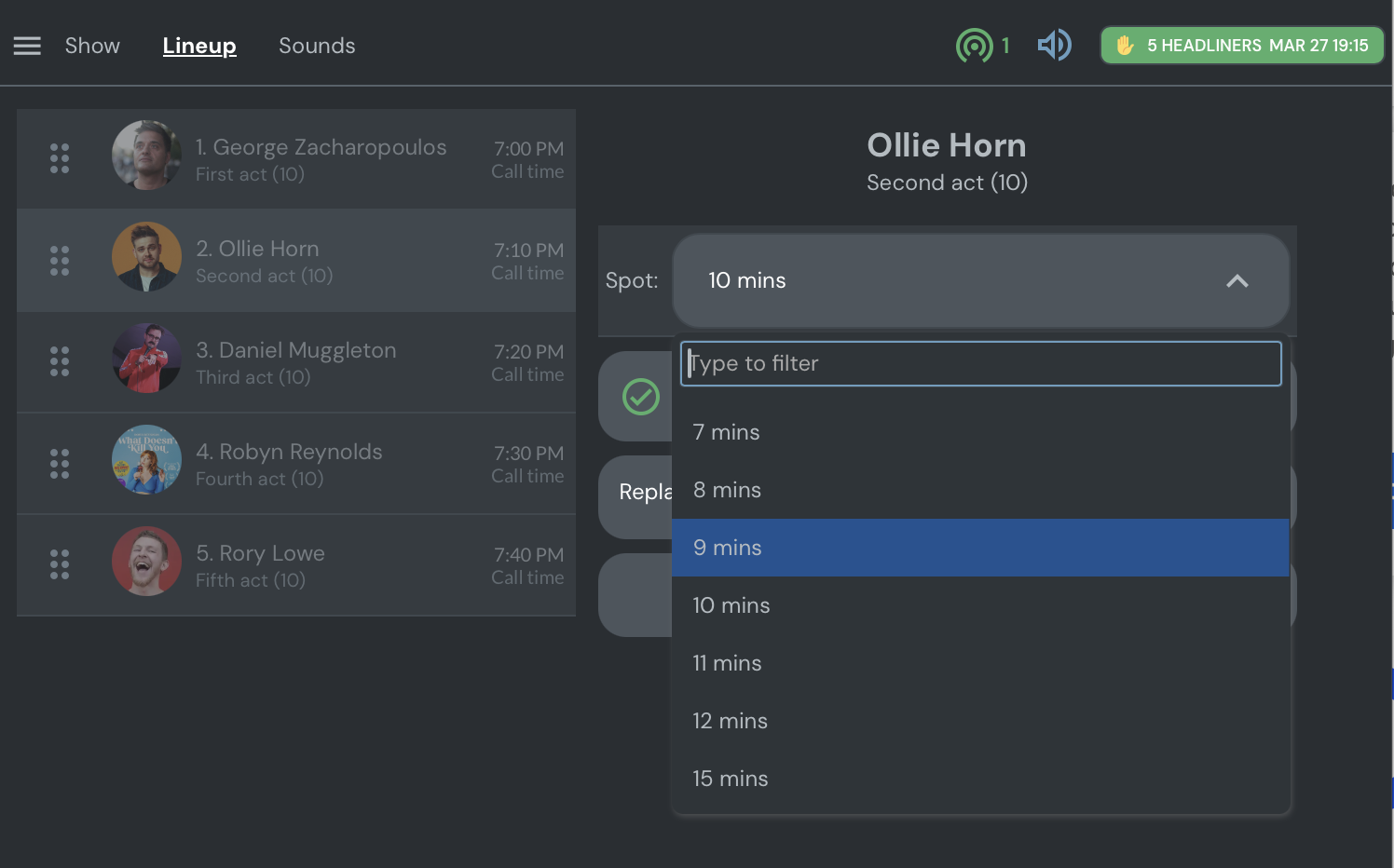
In the Lineup tab
In the Lineup tab of the showrunning view, you can select an act and change the number of minutes they will perform.
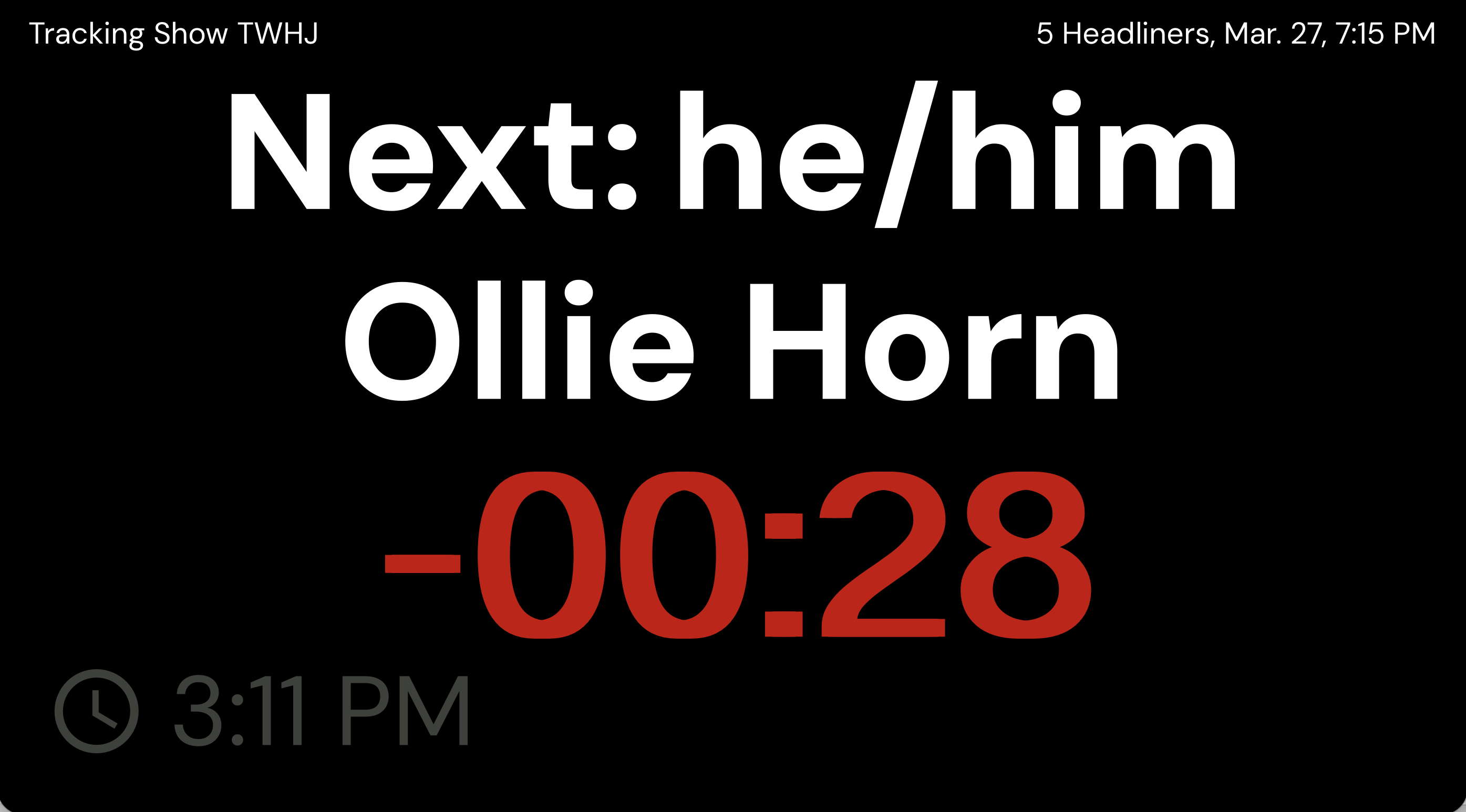
Displaying current time in Cue
Cue includes a clock display you can switch to during the show. Tap the clock on the Cue screen to show the larger clock view.
This is useful when you need a simple visible time display instead of the act countdown.