
Making use of Rosters
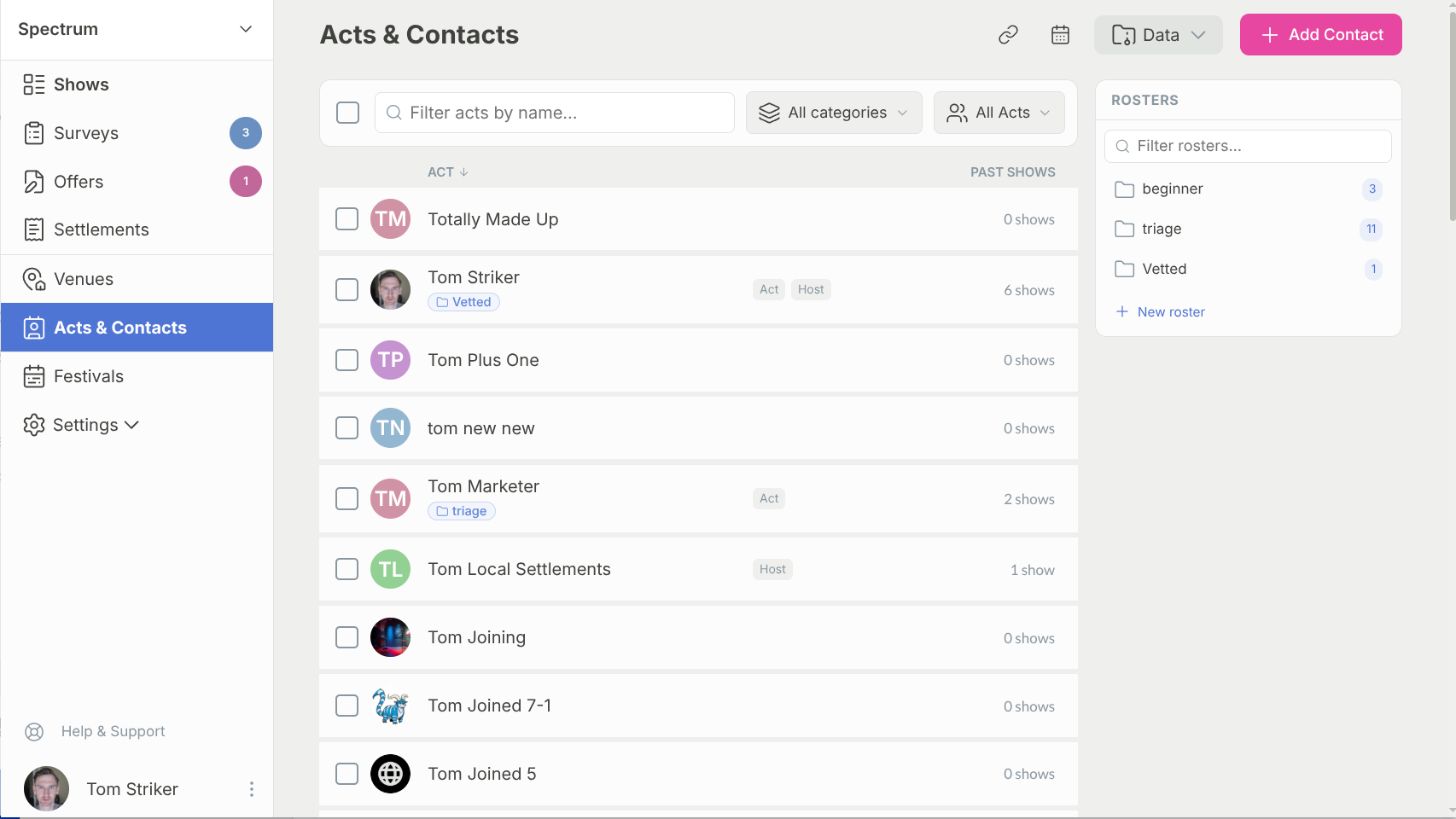
Rosters are named groups of acts you build once and reuse everywhere you work with talent. Group your headliners, your regulars, or every act who's hosted for you this year, then filter and shortlist by that group across the acts listing, filling spots, settlements, and offers.
Rosters replace act tags and can do something tags never could: a roster can fill itself.
Static and dynamic rosters
Every roster is one of two kinds. You choose when you create it.
Static — pick acts by hand
A static roster holds the acts you put in it. Tick the acts you want and they stay put until you change them. Use static rosters for a fixed line-up or a curated shortlist — a bill you've booked, your touring headliners, a group you hand-pick and keep.
Dynamic — fills itself from your filters
A dynamic roster stores a set of filters instead of a fixed list, and works out its members live. Set it up once — say, "every host on an upcoming club show" — and it stays current on its own as your shows change. No re-tagging, no maintenance.
To create a dynamic roster, head to show listing (click on Shows on top) and then change the view to Act View (right of the checkbox)
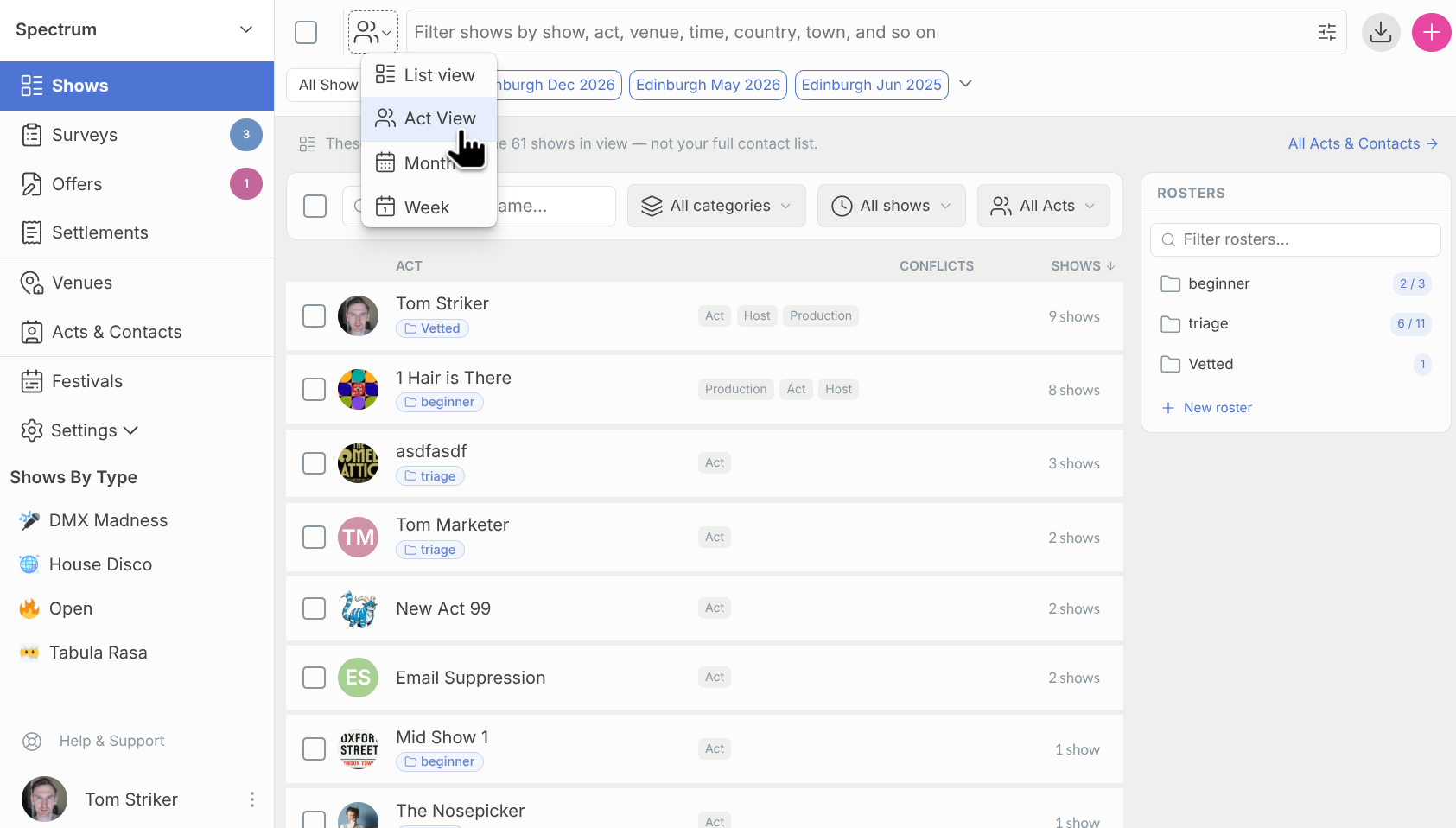
Here you can see insights about acts performing on the shows you have filtered down to. It can be past or future shows, happening in a specific location and bearing any other markers you want to filter by. Click on the + New Roster button at the bottom of the right side clusters bar.
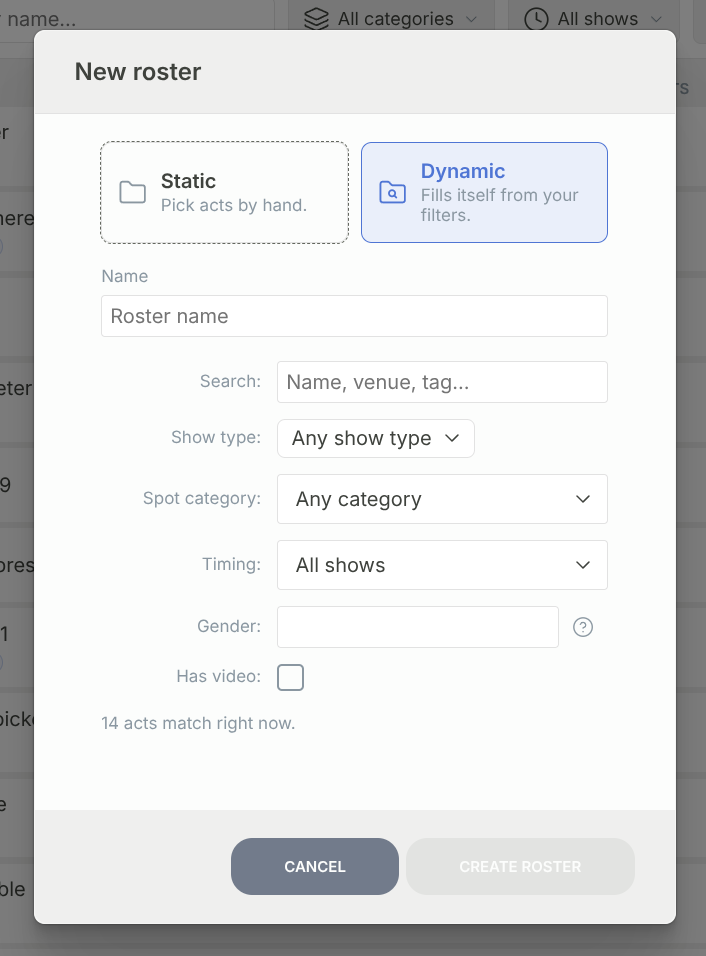
If you had any filters already active, the dialog will pre-populate fields with them. This way, you can first find what you want to rosterise, and then hit Create Roster, give it a name, and be done.
A dynamic roster draws its members from the acts booked into shows that match its filters. You can filter on:
Search — match by show, venue, or even another act - same as the main search bar in the listings.
Show type — any show type, or one in particular.
Spot category — Host, Act, or Production.
Timing — all shows, upcoming only, or a past window (the last 30, 60, 90, or 180 days, or all past shows).
Gender — one or more gender groups that acts identify with.
Has video — filter to only acts with a video on file.
As you set the filters, the editor shows how many acts match right now, so you can see the group take shape before you save.
Note on gender filter (in case you are wondering; if you are not wondering, you can skip this bit)
Acts in their profiles can specify the gender they identify with. We have a list of about 14 different genders that we lifted from OKCupid (because we are too small to know the insides and outsides of everything, even if some of us have a philosophy degree). In the gender filter, we roll specific gender groups into Women, Men, Non-binary folk, and Gender diverse. The intent of this filter is to allow you to quickly filter down to a specific group when you need to improve on diversity of your show. Are trans people included in the group they identify with? Absolutely.
Creating and managing rosters
You can create a roster from a few places:
The Rosters sidebar in the acts listing — select New roster, name it, and choose static or dynamic.
From a selection — tick some acts in the listing, open the Rosters menu, and add them to a new or existing roster in one go.
From an act's page — the Rosters section groups an act into rosters while you're editing it.
When you create a dynamic roster from a filtered view, it picks up the filters you already have in view, so it starts where you left off. To repoint an existing dynamic roster at a fresh set of filters, edit it and save the new criteria.
Rename or delete a roster from its editor. Deleting a roster only removes the group — the acts stay in your contacts.
Where rosters work
Browsing acts
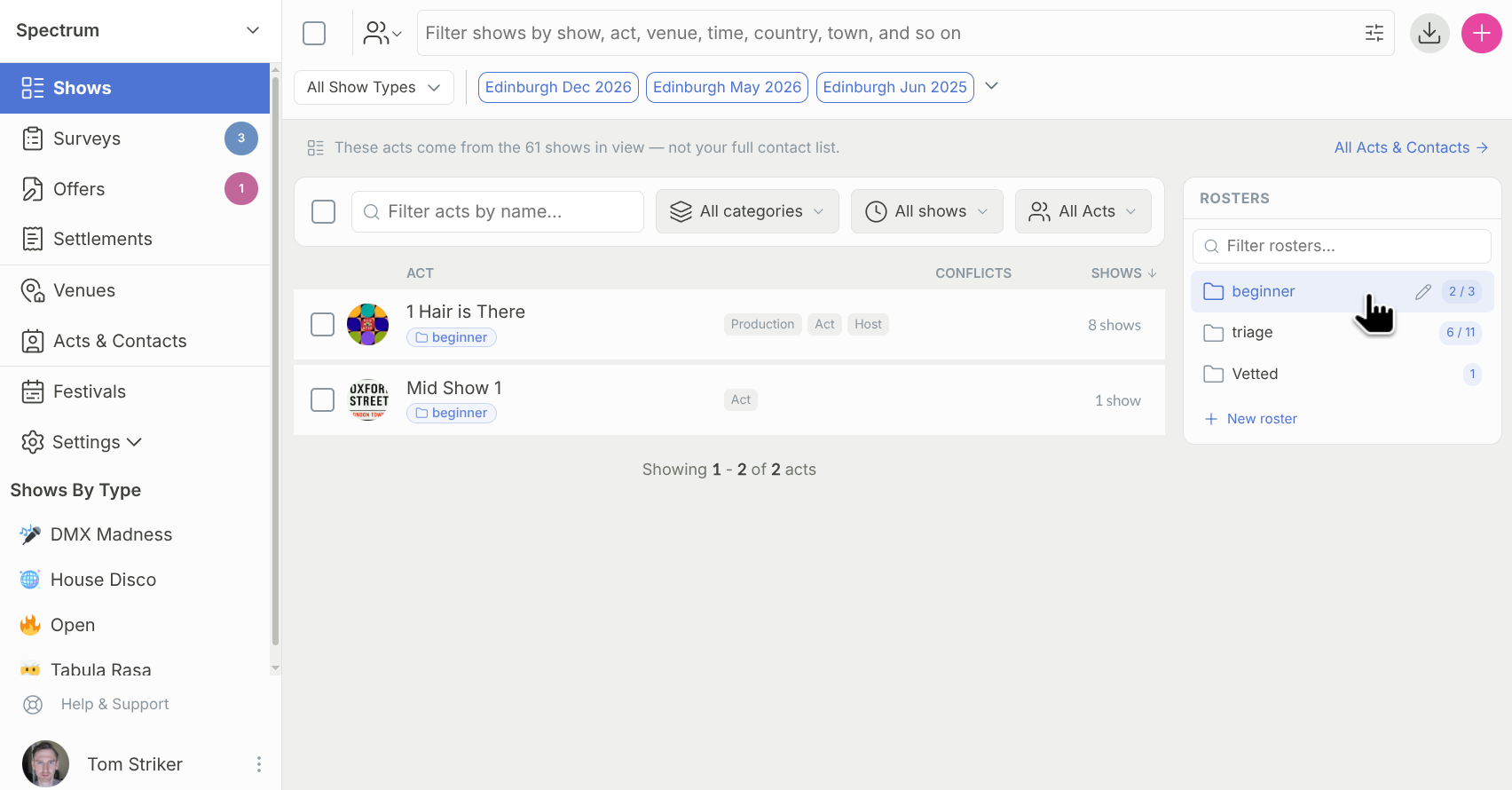
Click a roster in the sidebar to narrow the listing to its members; click it again to clear. Each roster's count reflects what you're currently filtering, so you can see how many of the acts in view belong to it. Every act row shows the rosters it belongs to as chips under the name, and you can add or remove acts from rosters in bulk by selecting them and using the Rosters menu.
Filling a spot
When you fill a spot, you can filter the candidates by roster. Each roster shows how many of its members are still available for that spot, not just its total — so you can jump straight to your headliners and see who's actually free before you commit.
Settlements
Group settlements by act and you can filter them to a single roster, with each act's rosters shown alongside it. The filtered view carries in the page address, so you can share a settlements view scoped to one group or come back to it later.
Offers
Group offers by act and the same roster filter appears, so you can review offers for just one group — only your regulars, say — without wading through every act.
Rosters worth setting up
Headliners (static) — the acts you build a bill around, picked by hand.
Regulars (static) — the acts you book again and again, ready to filter by across offers and settlements.
Recent hosts (dynamic) — every host on a show in the last 90 days, kept current for you.
Upcoming line-up (dynamic) — every act booked on an upcoming show of a given type.
Reach for a static roster when the group is a deliberate choice you want to hold steady, and a dynamic one when the group is really a question about your shows — "who's played recently", "who's on this month" — that you'd rather not keep answering by hand.