
Using availability surveys
When it's time to fill your show spots, you have two options: review responses from availability surveys, or directly assign performers you already know. This guide covers both approaches.
Filling spots without surveys
For situations where you know who will be performing—yourself, a colleague, or someone you've already spoken to—you can fill spots directly without running a survey.
Filling spots for a single show
To fill, empty, and edit spots in a single show, click on any of the headshots in the show listing. This opens the show edit dialog where you can manage your lineup.
You can either click "Fill Spot" to select from a list, or drag and drop acts from the sidebar. Use the search field to find specific performers by name, or filter by role to highlight compatible spots.
By default, spots are added in Planning state (indicated by a calendar icon with light background). This lets you build your lineup before extending offers. If the act has already confirmed—or you're adding yourself—click on the headshot to change the status to Confirmed.
Understanding spot categories
Spots are divided into three categories:
Hosts - The on-stage role responsible for controlling the pace of the show
Acts - Performers in the lineup (opener, middle, headliner, etc.)
Production - Show runners, flyerers, bar staff, and other support roles
Adding new contacts
If a performer isn't in your database yet, you can add them on the fly. Click "Fill Spot" first, then select "Add New Contact" at the bottom left of the modal.
Editing multiple shows at once
To edit several shows simultaneously, select them by ticking the checkboxes on the left of each show row. Click the checkbox in the toolbar at the top to select all shows.
Once selected, a batch edit sidebar appears on the right side of the screen, allowing you to edit all selected shows at once.
Reviewing survey applications
When you've run an availability survey, you can review applications on the show level or on an individual application level.
Reviewing applications on show level
In the show listing, spots with available applications display a blue badge with a number. Hover over any spot to see the role people have applied for—for example, five people applying for the opener spot.
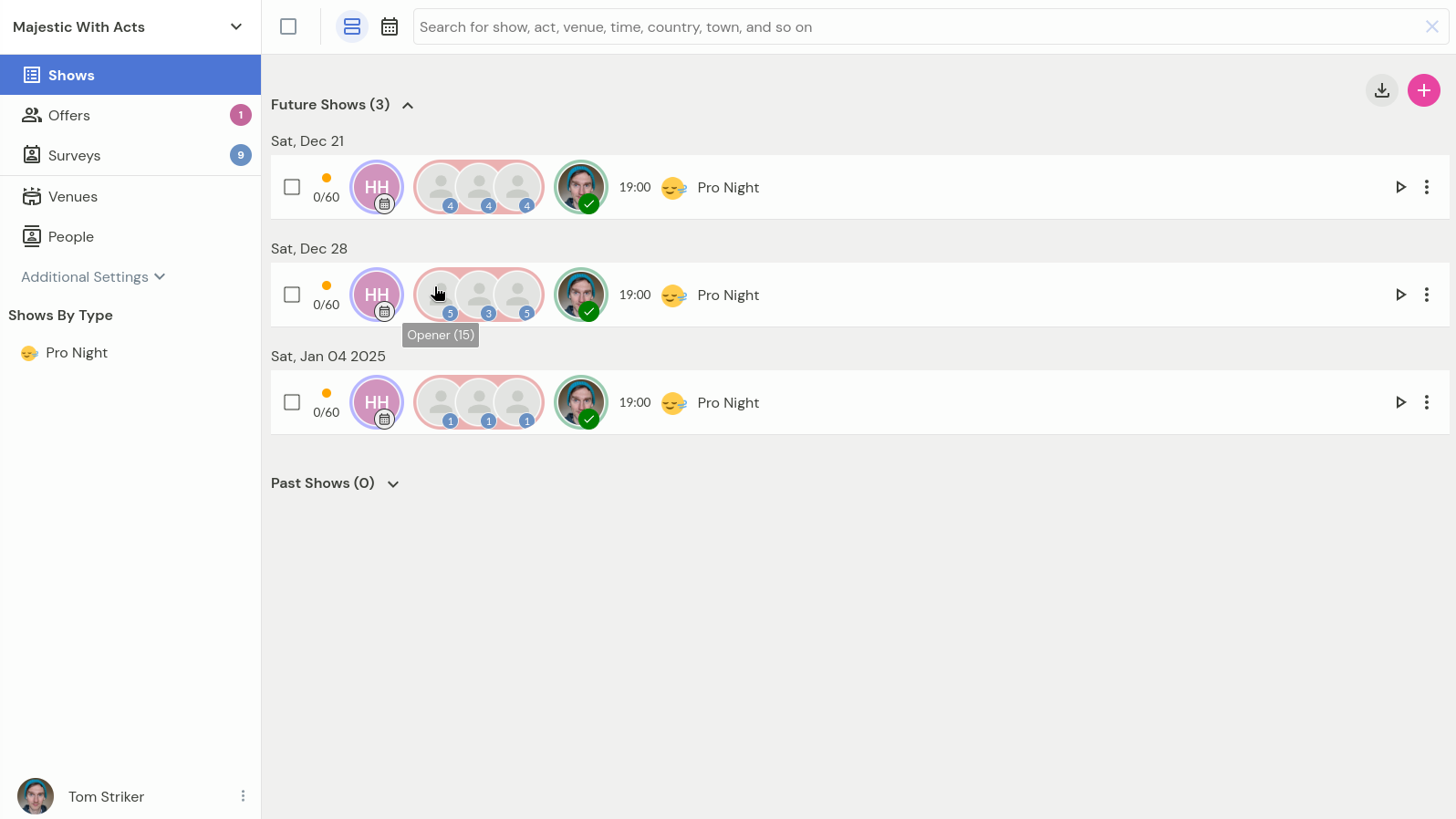
Click anywhere on the row to see more details:
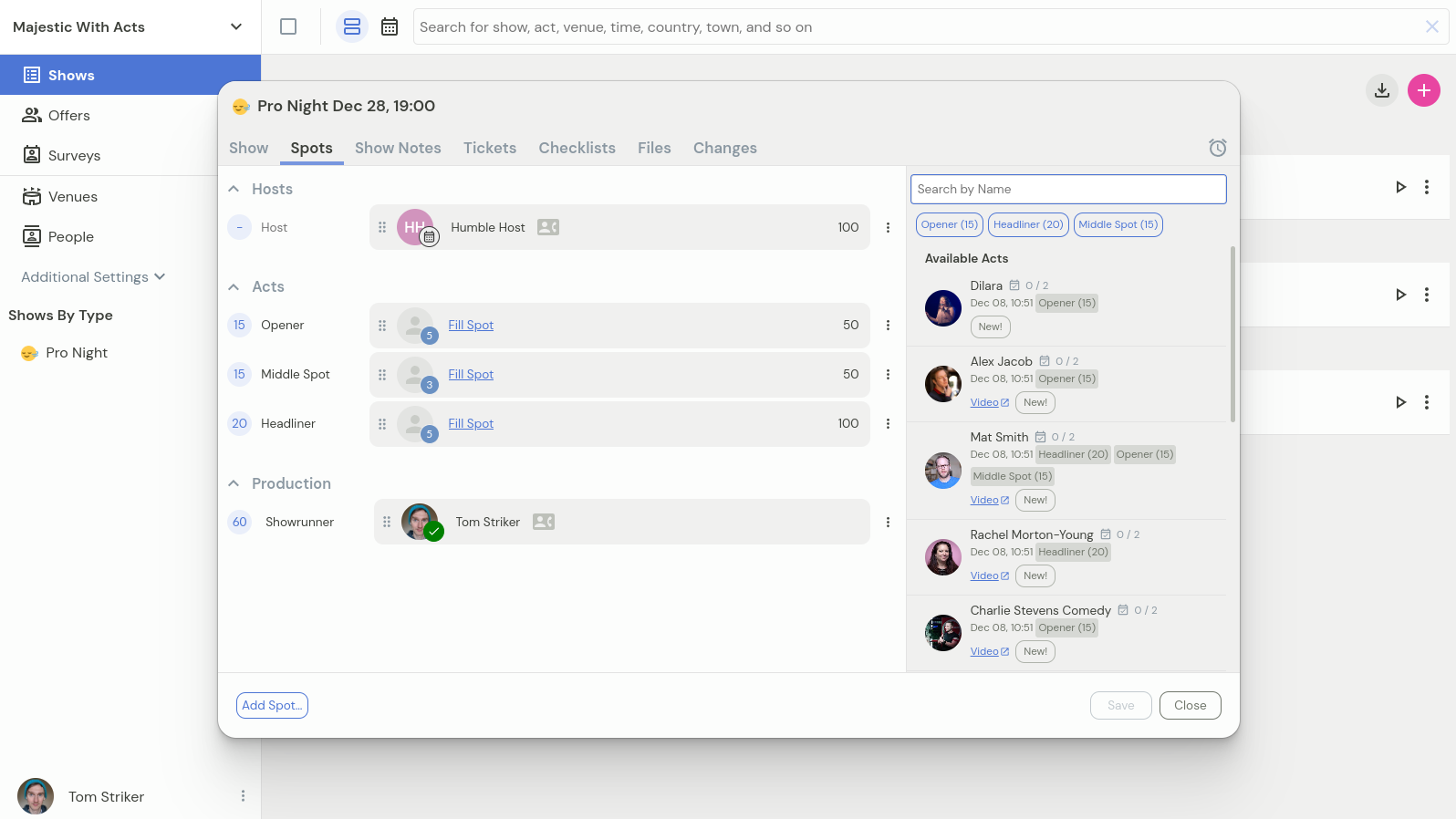
You can either click the "Fill spot" link for a specific spot, or drag and drop an act from the sidebar. When acts have applied via survey, they appear first in the Available Acts group in the sidebar.
Click the role buttons in the sidebar to highlight matching spots and filter results to only show applications for that specific role:
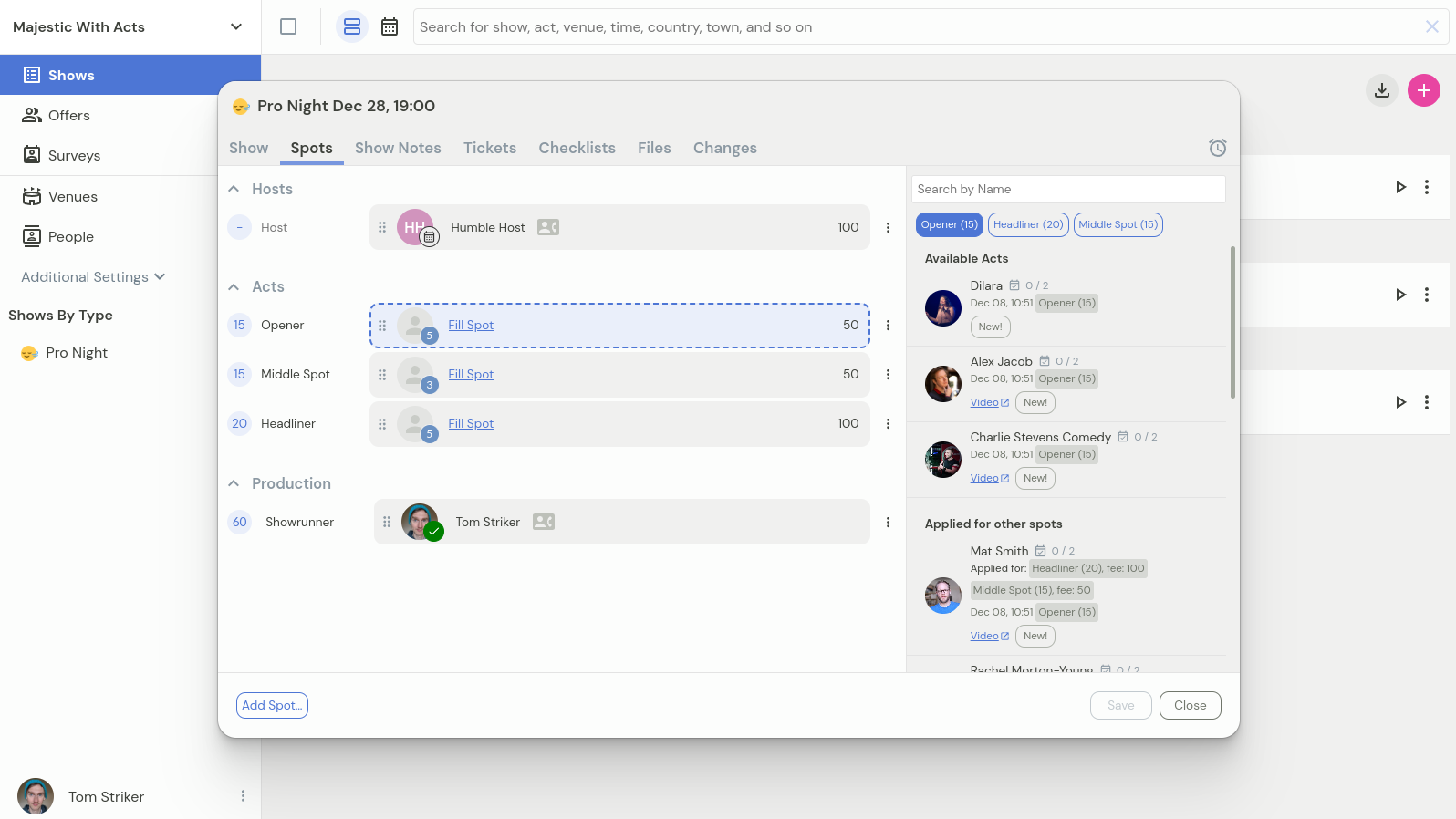
Moving an act to reviewed
Move any applied act to "reviewed" by clicking "Fill spot" first, then clicking the Move to Reviewed button. The reviewed act moves from the Available Acts section to Reviewed acts, and their application won't count toward available applications for that show.
Reviewing applications on individual application level
The second way to review availabilities is through the Surveys section in the navigation bar. Click the Applications link in a specific survey row, or click into the survey and switch to the applications tab.
Clicking on any person in the list brings up their application, allowing you to place them in any shows they've applied for.
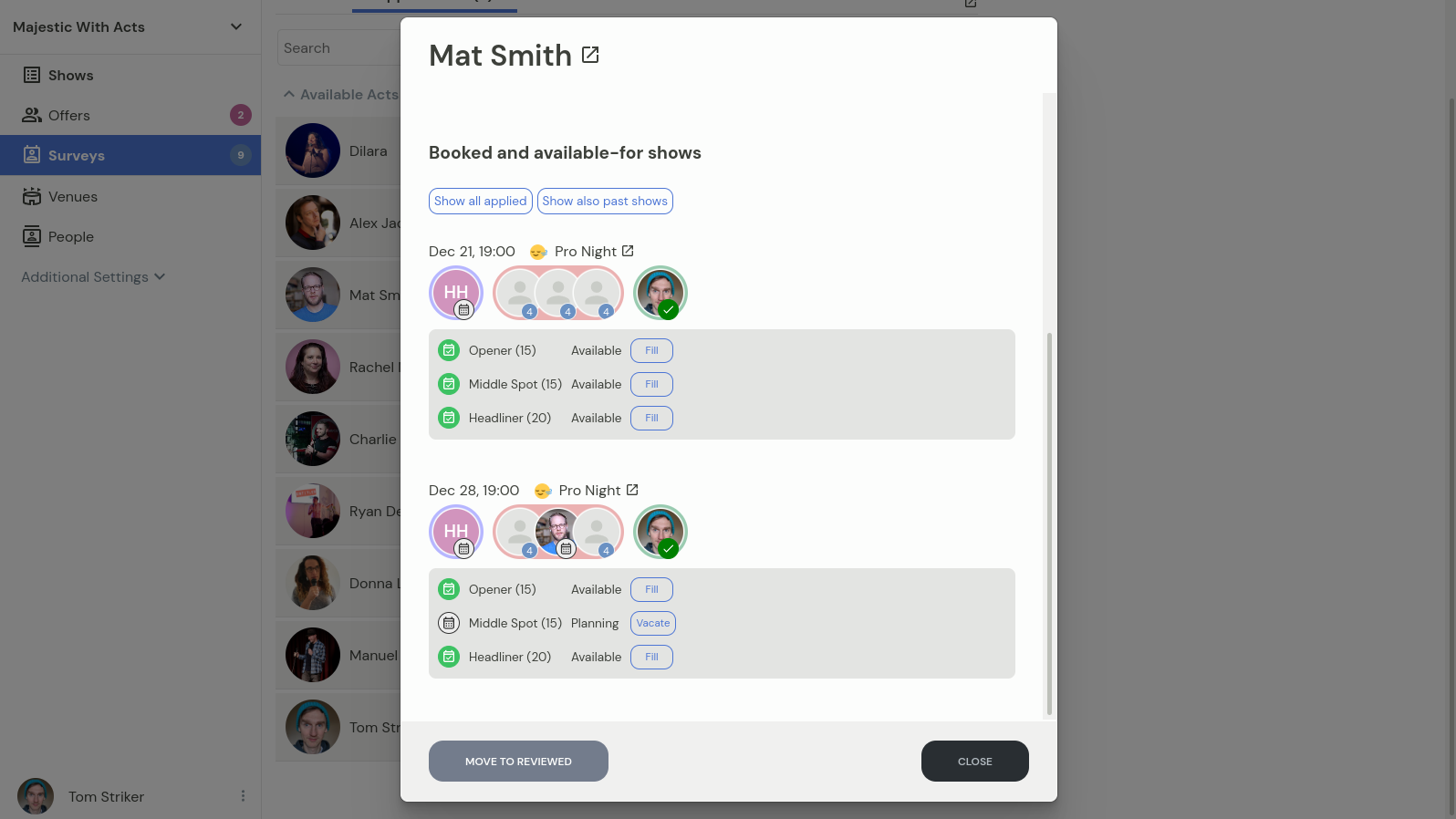
Each row in this view shows the current lineup of the specific event. You can fill spots with the chosen person for any spots they've applied for, or vacate the spot if you've changed your mind.
Clicking Move to Reviewed marks this act as reviewed. This is useful when you've placed them in all desired spots and don't want their availability to appear for other spots they applied to, avoiding overbooking.
Moving an act to reviewed only affects the specific shows they applied to. Any future applications will be available for review again.