
Extending offers to acts
Extending offers to acts
Confirmed is designed to fit around your existing booking workflow, not replace it. You can offer spots to acts in several different ways, depending on how formal you want the process to be.
Option 1: Use your existing channels (manual offer)
You’re free to offer spots outside of Confirmed, using whatever you already use:
Phone calls
Instagram DMs
WhatsApp
Text messages
In-person conversations
Confirmed works alongside these methods.
How to record this in Confirmed
When you’ve made an offer manually:
Open the show lineup
Set the act’s status to Offered
The spot will change to the black paper airplane icon
This status is purely internal:
No email is sent
No link is generated
Confirmed does not contact the act
It simply lets you keep accurate records of:
Who has been offered a spot
Which offers are still outstanding
What stage each booking is at
Option 2: Send an offer by email (via Confirmed)
You can also send an offer directly from Confirmed by email.
When you do this:
Confirmed sends an email on behalf of the production
The act receives a clear offer with confirmation options
Their response is tracked automatically
The lineup updates in real time when they accept or decline
This is ideal when you want:
A written record of the offer
Automatic confirmations
Less manual chasing
Option 3: Send an offer link
Instead of email, you can send an offer link generated by Confirmed.
This link can be shared anywhere:
Instagram DM
WhatsApp
SMS
Messenger
Email
When the act opens the link:
They see the offer details
They can accept or decline
Confirmed records the response instantly
In this case, Confirmed does handle the offer, even though you’re sending the link yourself since this link is what we would email the act if you were using our email service.
Summary: which option should I use?
Already spoke to the act? → Mark the spot as Offered to keep internal records
Want Confirmed to handle confirmations? → Send the offer by email or link
All three approaches can be mixed and matched — Confirmed is built to support real-world booking habits, not force you into a single process.
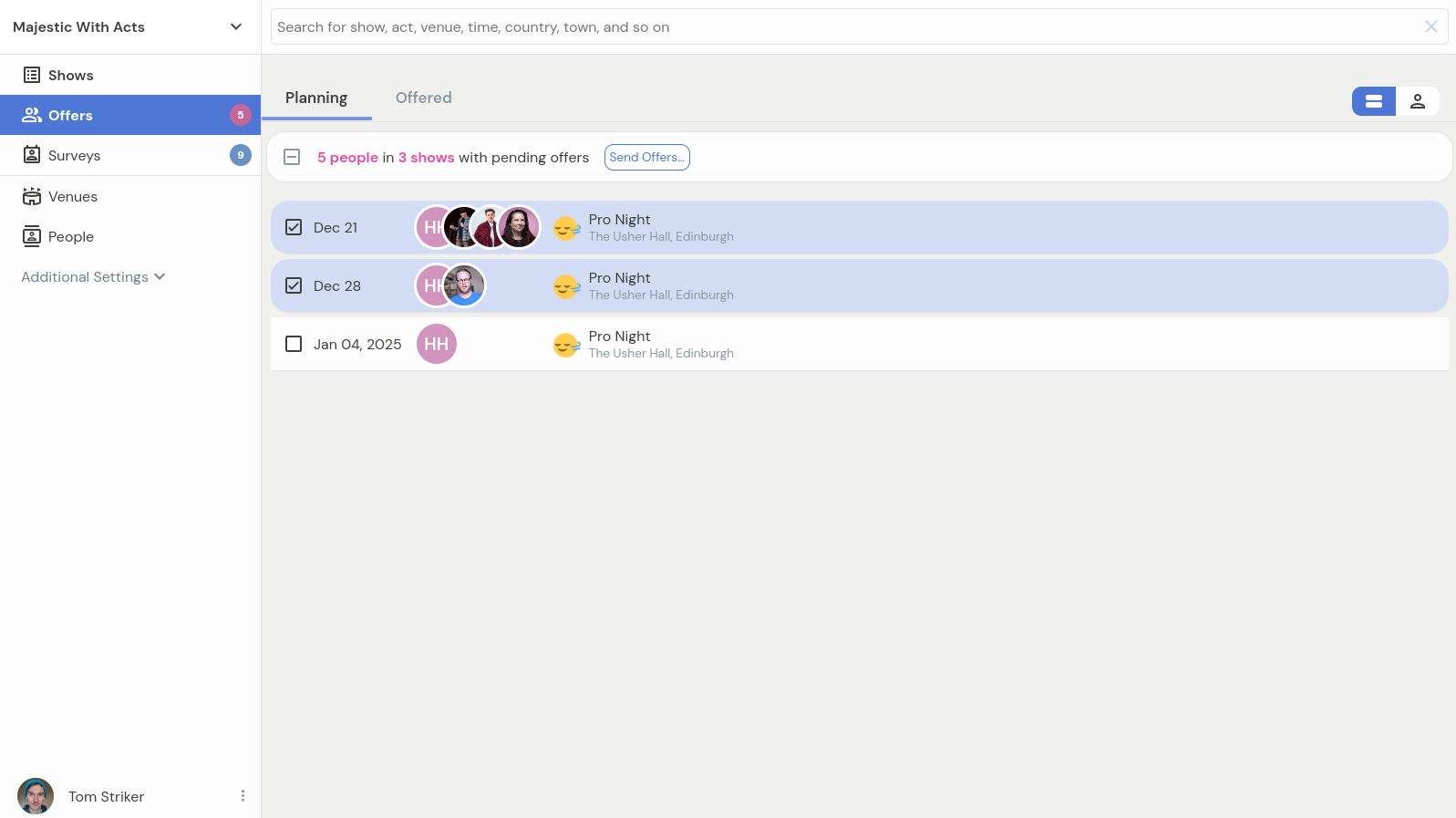
Head to the Offers section in the navigation to send out the offers. The number to the right of the label will show how many acts have spots in the planning status and so can be extended offers to.
Sending out offers in a batch
If the offers do not require specific messaging (e.g. a generic message will do), you can select all shows that you'd like to extend the offers to and then click on the Send offers... button.
This will bring up all spots for the offers that you are about to send out and allow to deselect any rows that you don't want to offer just yet, as well as craft a generalized message.
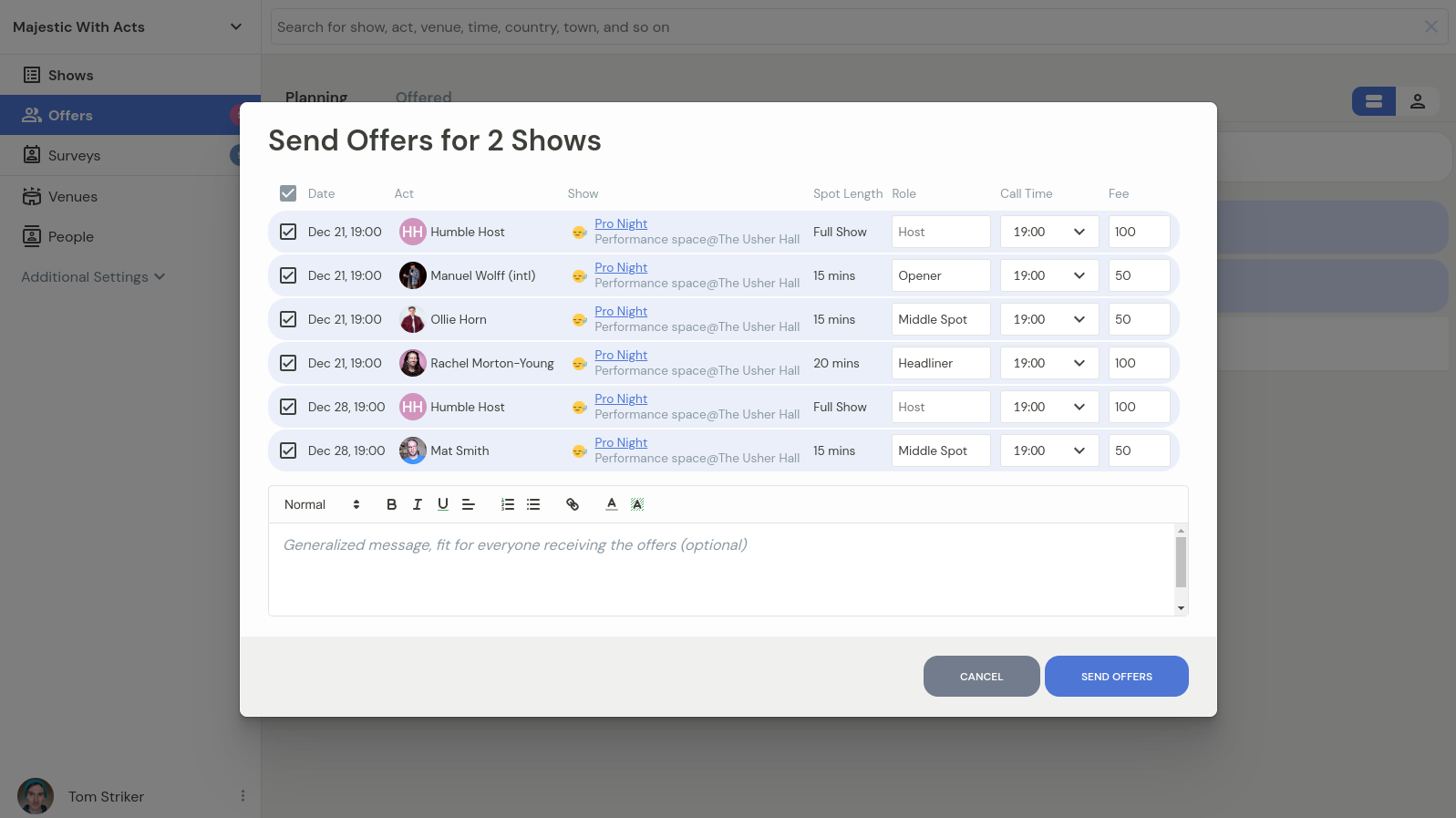
This is also a good opportunity to review the role, call time and fee fields to make sure that they contain correct information.
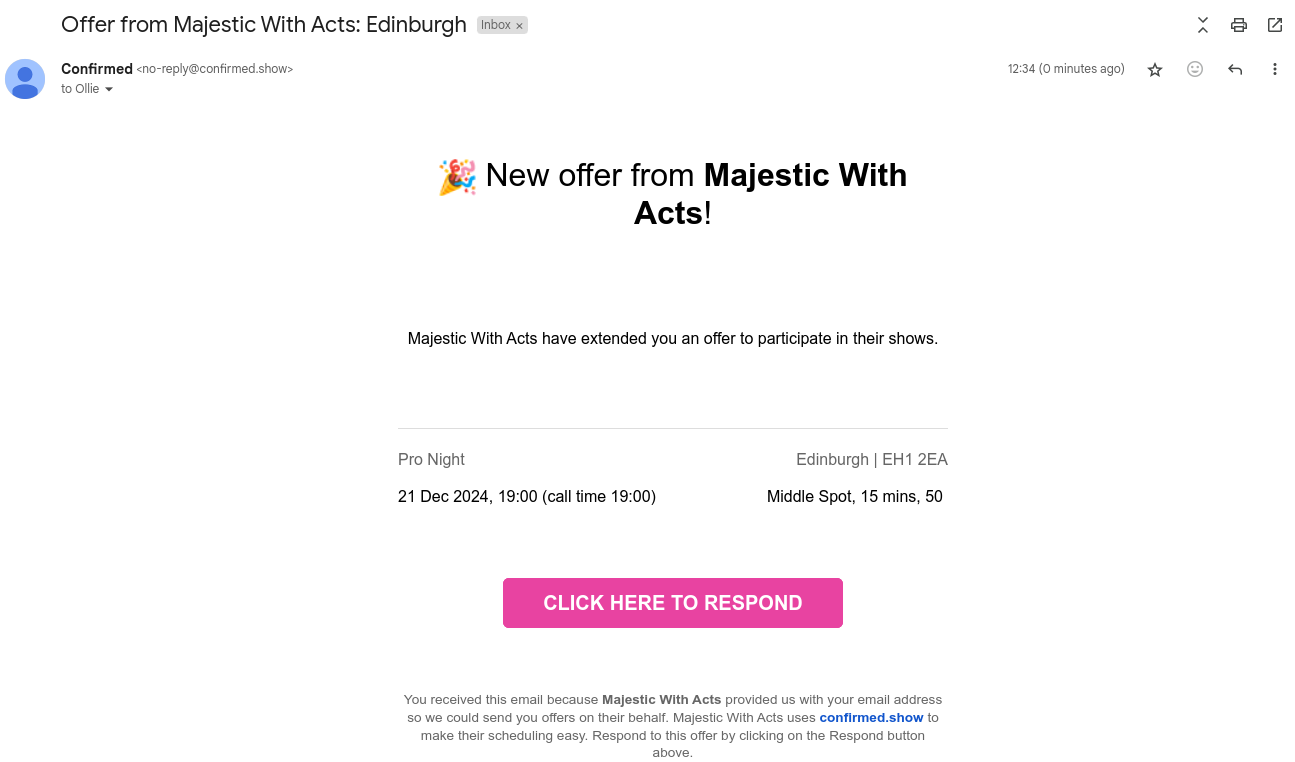
If everything looks correct, hitting the Send Offers button will generate an offer for each act as well as send them an email that they can quickly review and then respond to the offer in Confirmed. Here's roughly what the recipients will receive:
Sending out an individual offer
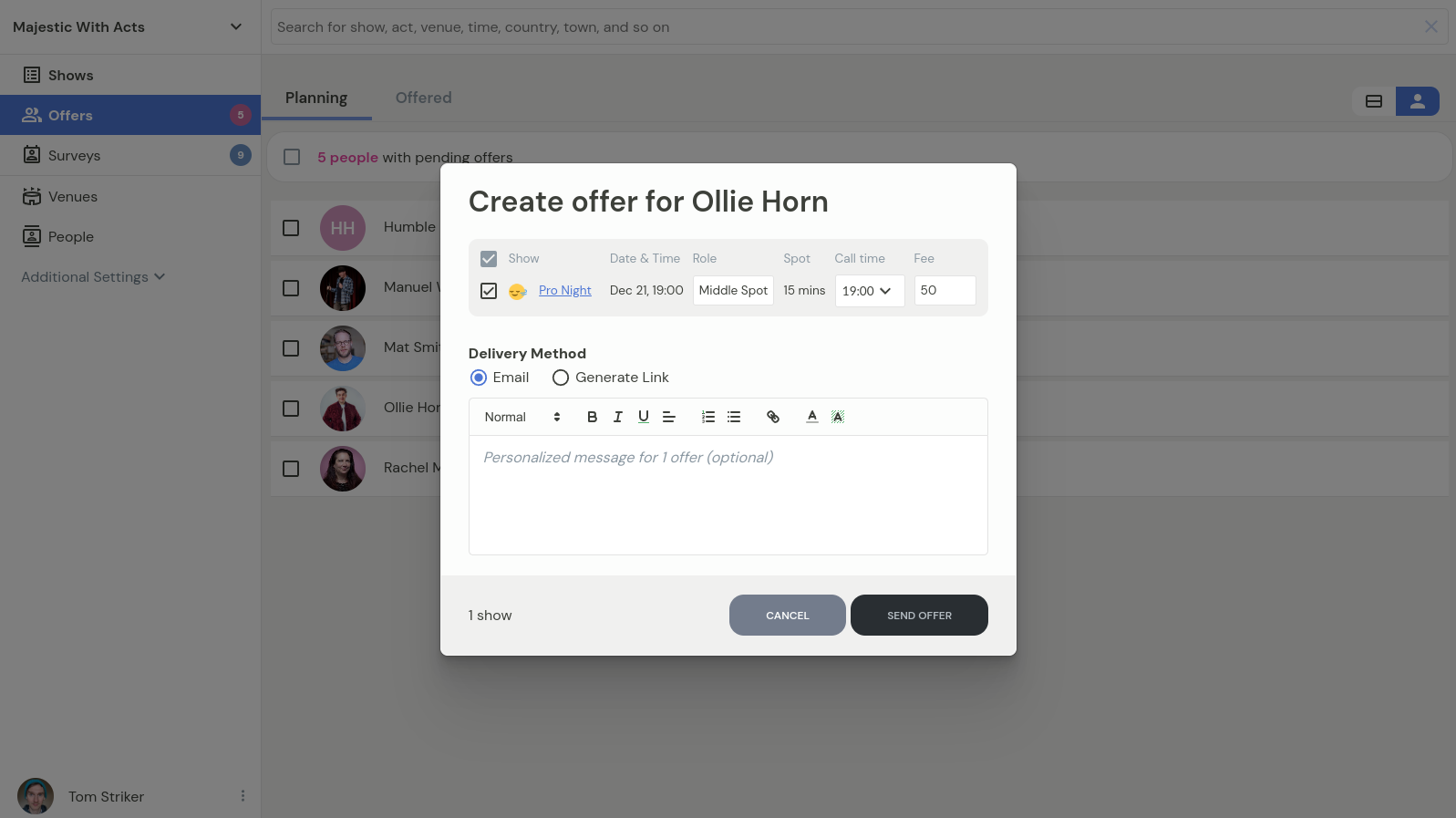
By default, all pending offers are grouped by show. You can instead switch to grouping by person, by clicking on the toggle on the top-right of the list. The by-person view is particularly useful to extend offers one person at a time, as then you can prepare a message specifically intended for that person, as well as you will have the choice to either send their offer via email, or generate a link that you can share in chat apps.
Viewing applications from surveys
Once you've received responses to your availability surveys, you can view applications in several ways:
From the Surveys tab
Navigate to the Surveys section
Click on your survey
View all applications with performer details
Responses include information requested in survey fields
From the main Shows page
Blue badges on shows indicate available applications
Numbers show how many performers applied for each spot
Click on a show to see applicant details
Drag and drop performers from the sidebar to fill spots
The show-level view highlights applicants who are available for that specific date, making it faster to fill spots.
Auto-confirm feature
Some productions enable auto-confirm for survey responses. When enabled:
Performers who complete surveys are automatically confirmed for selected spots
No manual offer sending required
Performers receive immediate confirmation
Status goes straight to "Confirmed"
Auto-confirm is useful for open mics or first-come-first-served spots where manual review isn't needed.
What performers see when receiving offers
When performers receive offers via email or link:
They see show details: date, time, venue, role, fee
Accept or reject buttons are clearly visible
Once accepted, status changes to "Confirmed"
Once rejected, spot status changes to "Rejected" and spot is vacated
Automatic status change of the spot
Once an offer has been sent out, the spot status changes from Planning to Offered. Acts will have the option to accept/reject offer for each individual spot in the offer. If they accept the offer, the status will become Confirmed. On other hand, if they reject the spot, the spot will be vacated, and a copy of the spot will be added to the end of the lineup with status Rejected. This is so you can at a glance see if an act has rejected a spot. This spot is safe to remove if the information is not useful anymore. Vacated spots become available once again in any availability surveys offering spots for the specific shows.